Dashboard and Operation Menu
OCX Portal Basic Operation Menu
Upon signing in to the OCX Portal, you will be directed to the dashboard screen shown below.
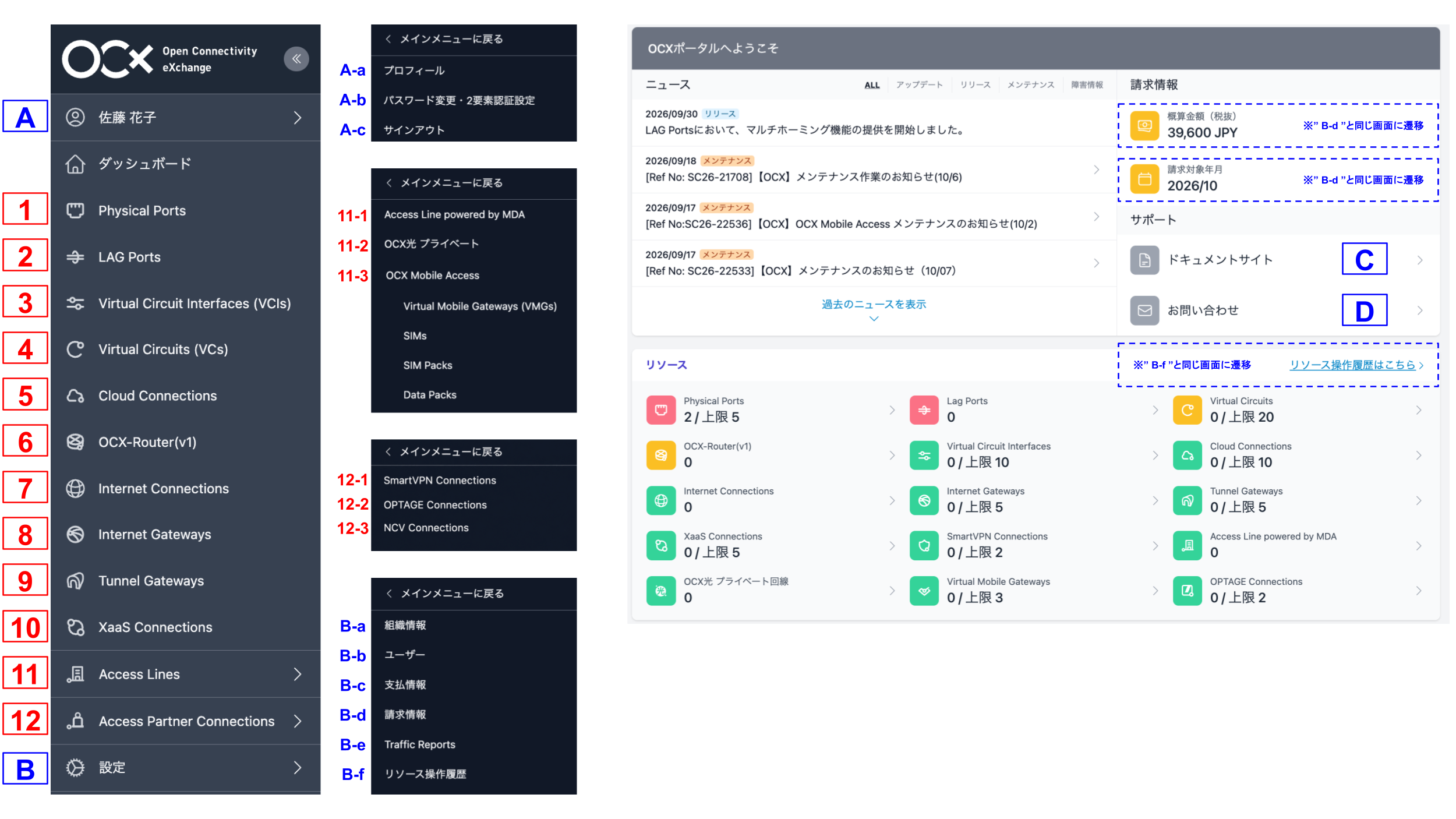
*This is the portal screen as of October 2026.
| No | Menu Name | Feature |
|---|---|---|
| 1 | Physical Ports | Create, update, and delete Physical Port resources. |
| 2 | LAG Ports | Resources that logically combine multiple Physical Ports into a single line. Create, update, and delete them. |
| 3 | Virtual Circuit Interfaces (VCIs) | Create, update, and delete VCI resources. |
| 4 | Virtual Circuits (VCs) | Create, attach (set destination), detach (remove destination), update, and delete VC resources. |
| 5 | Cloud Connections | Create, update, and delete Cloud Connection resources. |
| 6 | OCX-Router(v1) | Create, update, and delete OCX-Router(v1) resources, Router Interfaces, BGP Parameters, and Static Routes for routing configurations. |
| 7 | Internet Connections | Create, update, and delete Internet Connection resources and additional prefixes. |
| 8 | Internet Gateways | Create, update, and delete Internet Gateway resources, NAT IP addresses for conversion, BGP Parameters, and Static Routes. |
| 9 | Tunnel Gateways | Create, update, and delete Tunnel Gateway resources, connect/disconnect with optical lines, and manage Static Routes. |
| 10 | XaaS Connections | Create, update, and delete XaaS Connection resources, NAT IP addresses, and BGP Parameters. |
| 11-1 | Access Line powered by MDA | Apply for Access Line powered by MDA resources and check their usage status. |
| 11-2 | OCX Hikari Private | Apply for OCX Hikari Private lines and check their usage status. |
| 11-3 | OCX Mobile Access | Apply for OCX Mobile Access resources and check their usage status. |
| 12-1 | Smart VPN Connection | Create, update, and delete Smart VPN Connection resources. |
| 12-2 | OPTAGE Connection | Create, update, and delete OPTAGE Connection resources. |
| 12-3 | NCV Connection | Create, update, and delete NCV Connection resources. |
| No | Menu Name | Description |
|---|---|---|
| A-a | My Profile | Displays information about the currently signed-in OCX account (user). |
| A-b | Password and 2FA settings | Change your password and configure two-factor authentication. |
| A-c | Sign Out | Sign out of the OCX Portal. |
| B-a | Organization Information | View and update the company information registered with OCX. |
| B-b | Users | View users who can sign in to the OCX Portal and change their permissions. |
| B-c | My Billing Information | Check the payment status of OCX resource fees. |
| B-d | Invoices | Check billing amounts and the corresponding billing month and year. |
| B-e | Traffic Reports | Check the amount of traffic flowing through Physical Ports, LAG Ports, and VCIs. |
| B-f | Resource Control History | View the history of resource creation, modification, and deletion operations for resources belonging to your organization. |
| C | Documents | Opens this documentation site. |
| D | Contact Us | For inquiries regarding OCX, please contact us via Contact Us on the right side of the dashboard. |
Action Menu
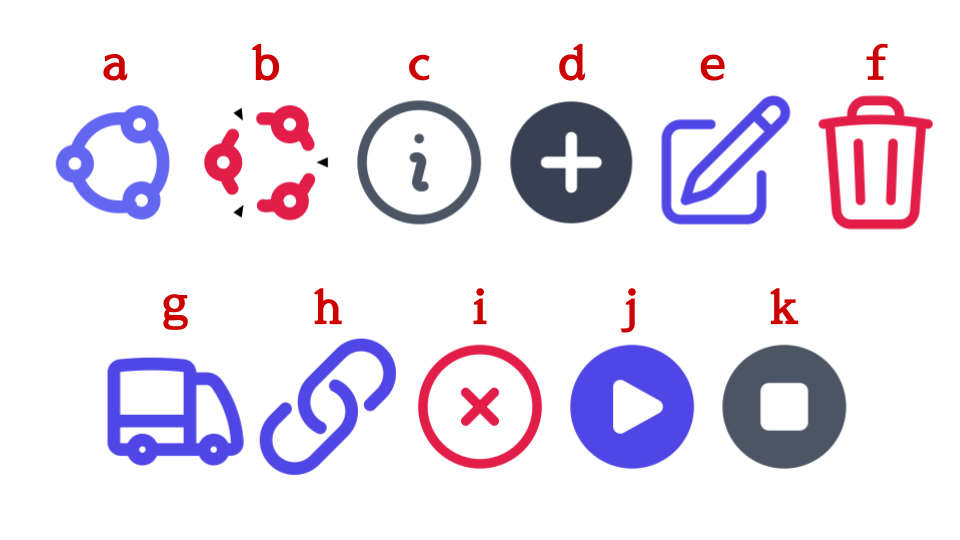
This section explains the operations available under the Actions column on the right side of each resource list.
| No | Action Menu Name | Description |
|---|---|---|
| a | Attach Icon | Attach a resource (set destination). |
| b | Detach Icon | Detach a resource (remove connection). |
| c | Information Icon | View configuration details for the corresponding resource. |
| d | Create Icon | Create a new resource. |
| e | Edit Icon | Modify settings for the corresponding resource. |
| f | Delete Icon | Decommission (delete) the corresponding resource. |
| g | Ship Icon | Execute shipping for the corresponding resource/item. |
| h | Register Icon | Register the corresponding resource/item. |
| i | Link Icon | Link the corresponding resource/item. |
| j | Cancel Icon | Cancel the corresponding resource/item. |
| k | Start Icon | Start the corresponding resource/item. |
| l | Stop Icon | Stop the corresponding resource/item. |
| m | Reattach Icon | Reconnect the corresponding resource/item. |
| n | Release Icon | Release the corresponding resource/item. |