Creating LAG Port
This page explains how to create a LAG Port using the OCX Portal.
Preparation
Please confirm the following before creating a LAG Port:
- Your User Role is either
adminoruser. - You have already created Physical Ports that meet the following requirements:
- At least one Physical Port has been created at the same OCX network location (DC). *See the list of OCX network locations (DCs) here.
- All Physical Ports constituting the LAG must have the same bandwidth speed.
- The status of the Physical Ports you intend to add to the LAG must be
available(provisioned). - The Physical Ports you intend to add to the LAG must not be associated with any VCI or other resources.
Steps for Creating LAG Port
-
Log in to the OCX Portal.
-
Click [LAG Ports] from the left navigation bar.
-
On the LAG Ports list page, click [Create].
-
The screen will switch to the information entry page. Fill in the following items and click [Create]. Items marked with an asterisk (*) are required.
- Physical Ports*
- Specify at least one and up to eight Physical Ports prepared in Preparation - 2.
- Name*
- Enter an arbitrary name. Using an easily identifiable name will make management simpler.
- Maximum length is 40 characters.
- Leading and trailing whitespace in the resource name will be automatically removed.
- Minimum Links*
- This is the number of physical lines required for operation when using LACP (Link Aggregation Control Protocol). If the number of physical lines that are linked up falls below this minimum number, the LAG Port will cease to function.
- Set this to the same value as your switch configuration.
- If you do not wish to set a minimum link count, set it to
0.
- Use LACP*
- Check this box to enable LACP (Link Aggregation Control Protocol).
- Using LACP has the advantage of correctly detecting failures that do not involve a physical link down, allowing for appropriate frame forwarding.
- Physical Ports*
-
A [Confirmation of Creation] pop-up will appear. Review the settings and click [Create].
-
You will be returned to the LAG Ports list page. Confirm that the status of the created LAG Port is
available.
This completes the creation of the LAG Port.
Remarks
- Physical Ports added to a LAG Port will show a status of
bundledwhen viewed in the Physical Port list. - The configuration image of a LAG Port is shown below.
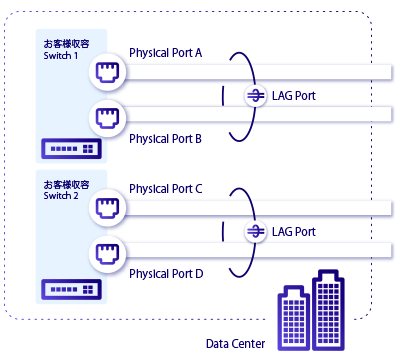
- A network configuration in which a single LAG Port is configured across multiple devices is not supported. If redundancy is required across multiple devices, please prepare two LAG Ports and use Multihoming.