Updating an Additional Prefix
This page explains the procedure for updating an additional prefix using the OCX Portal.
Preparation
Please confirm the following before updating an additional prefix:
- Your User Role is either
adminoruser.
Procedure for Updating an Additional Prefix
-
Log in to the OCX Portal.
-
Click [Internet Connections] from the left navigation bar.
-
On the Internet Connections page, click the target Internet Connection resource.
-
A detail screen will appear at the bottom of the page. Switch to the [Additional Prefix] tab.
-
Once the additional prefix list is displayed, click the
Edit iconin the Actions column on the right side of the corresponding prefix. -
The screen will switch to the configuration change steps. The following items can be modified. After entering the items you wish to change, click [Edit]. You must enter at least one of either the IPv4 Next Hop or IPv6 Next Hop.
-
IPv4 Next Hop
- Enter an IPv4 address (e.g., 192.168.0.1).
- Set this within the range of the IPv4 prefix (/29) assigned on the Internet Connection details screen.
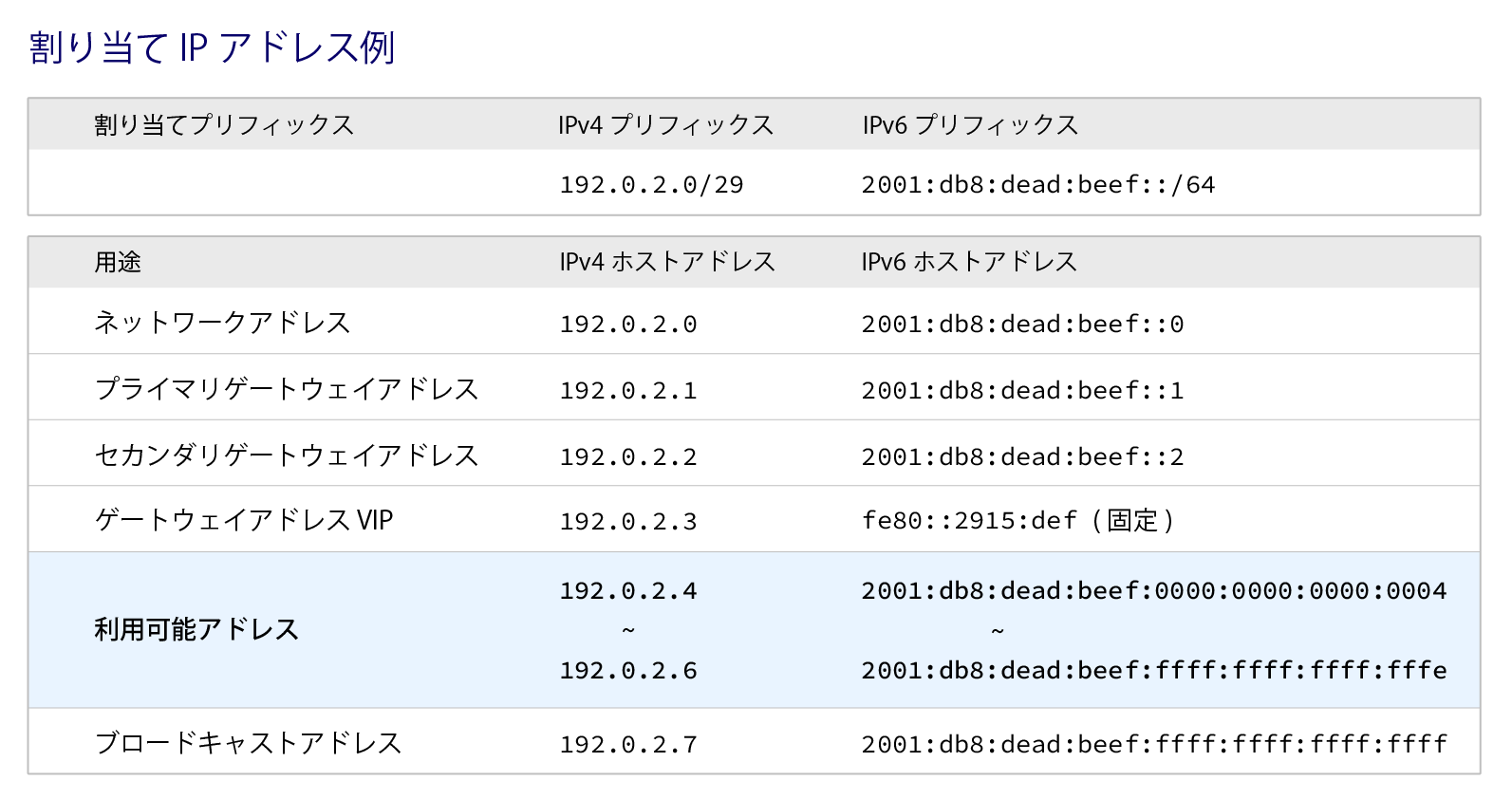
- Note that the first four IP addresses in this range are reserved by the OCX system as the Network Address, IPv4 Gateway VIP, Primary IPv4 Gateway Address, and Secondary IPv4 Gateway Address, respectively, and cannot be used.
- Additionally, the last IP address in the range is reserved as the Broadcast Address and cannot be used.
- For more details on the usable IP address range, please refer to Supplement: Assignable IP Address Range for Next Hop.
-
IPv6 Next Hop
- Enter an IPv6 address (e.g., 2001:db8::dead:fffe).
- Set this within the range of the IPv6 prefix (/64) assigned on the Internet Connection details screen.
- Note that the first four IP addresses in this range are reserved by the OCX system as the Network Address, IPv6 Gateway VIP, Primary IPv6 Gateway Address, and Secondary IPv6 Gateway Address, respectively, and cannot be used.
- Additionally, the last IP address in the range is reserved as the Broadcast Address and cannot be used.
- For more details on the usable IP address range, please refer to Supplement: Assignable IP Address Range for Next Hop.
-
-
A confirmation pop-up will appear. If there are no issues with the content, click [Edit].
-
The Additional Prefix list will be displayed at the bottom of the screen. Confirm that the changes have been reflected.
This completes the process for updating the additional prefix.
Remarks: Assignable IP Address Range for Next Hop
As shown in the "Example IP Address Allocation" table below, certain IP addresses are already reserved by the OCX system. The range of IP addresses that can be set as the next hop for an additional prefix is described in the Usable Address section. *The table below is an example only. Please check the Internet Connection details screen for your actual assigned IP addresses.